How to Install Soccery TV APK on Android: A Complete Guide
Introduction to Soccery TV
For football enthusiasts worldwide, staying updated with real-time match data, transfer rumors, and league standings is a daily ritual. The Soccery TV app is designed specifically for this purpose, offering a fast, reliable, and user-friendly platform for football fans. While you can always access live football scores directly on our homepage, having the dedicated Soccery TV Android app on your mobile device elevates the experience. It provides instant push notifications, detailed player statistics, and match lineups right at your fingertips.
Because some Android applications are distributed directly as APK (Android Package Kit) files to ensure users get the latest updates without store-induced delays, knowing how to install an APK is a valuable skill. In this comprehensive guide, we will walk you through the step-by-step process of downloading and installing the Soccery TV APK on your Android smartphone or tablet safely.
Why Download the Soccery TV APK?
Many users wonder why they should opt for an APK installation rather than relying solely on traditional app stores. Downloading the Soccery TV APK directly offers several distinct advantages:
- Instant Updates: Get access to the newest features, bug fixes, and performance improvements the moment they are released by our development team.
- Bypass Regional Restrictions: Sometimes, official app stores restrict downloads based on your geographical location. The APK bypasses these virtual borders, allowing football fans globally to enjoy the app.
- Lightweight and Optimized: Our APK is optimized to run smoothly on a wide range of Android versions, ensuring that even older devices can track live matches without lagging.
By installing the app, you also gain seamless access to our dedicated news section, where you can read more football news, expert analyses, and tactical breakdowns of the world's biggest matches.
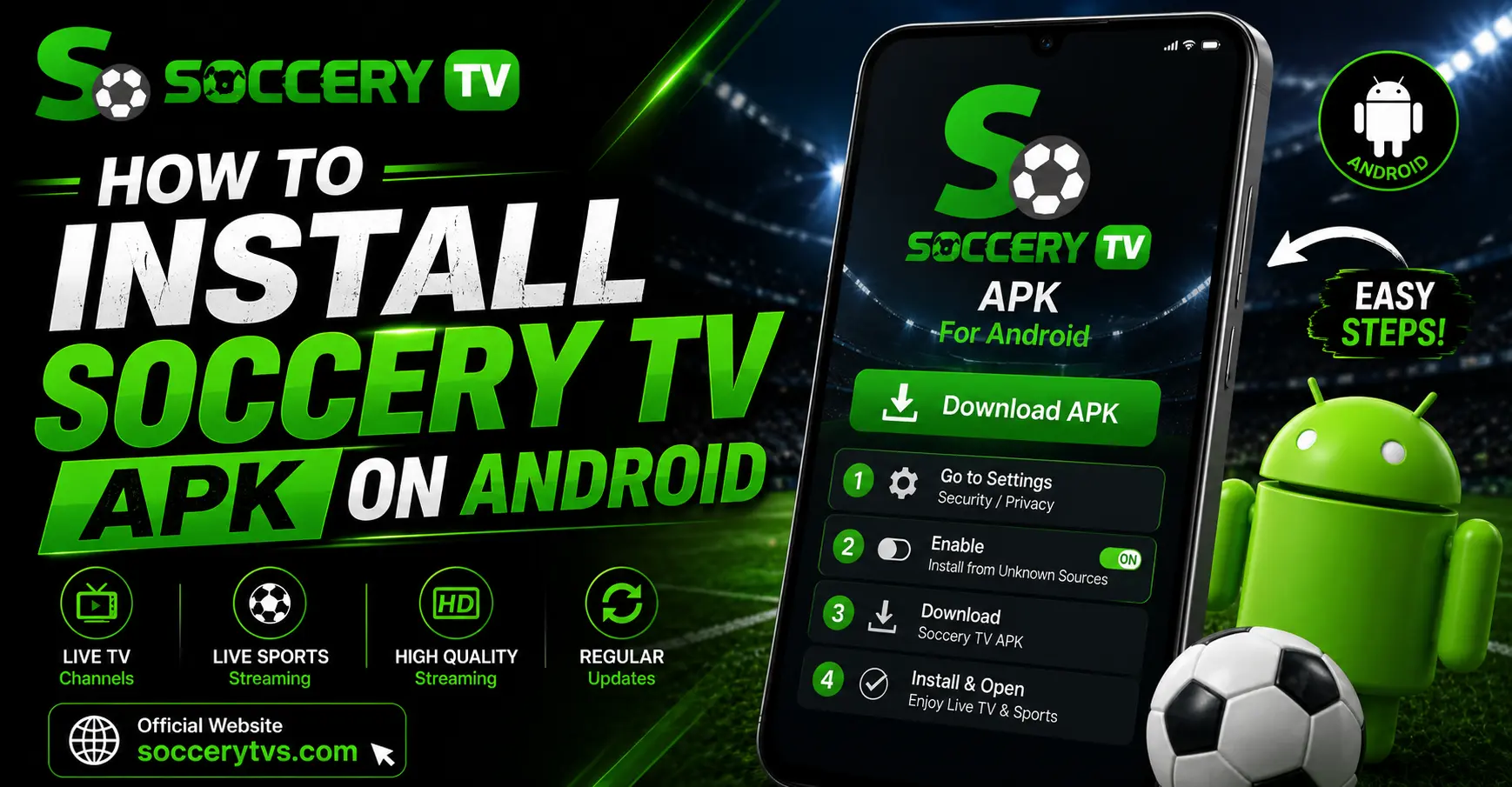
Step 1: Enable Installation from Unknown Sources
By default, Android devices block the installation of applications that do not originate from the official Google Play Store. This is a security measure designed to protect your phone. To install the Soccery TV APK, you will need to temporarily allow installations from "Unknown Sources." Don't worry; this is a standard procedure for installing safe, third-party utility apps.
Depending on your Android version, follow these steps:
For Android 8.0 (Oreo) and Newer:
Modern Android versions manage permissions on an app-by-app basis. You must grant your web browser (like Google Chrome) or file manager permission to install apps.
- Open your device's Settings.
- Navigate to Apps & Notifications (or Apps).
- Tap on Special App Access (often found under "Advanced" settings).
- Select Install Unknown Apps.
- Choose the browser you will use to download the APK (e.g., Chrome) and toggle on Allow from this source.
For Android 7.0 (Nougat) and Older:
- Go to your device's Settings.
- Tap on Security (or Lock Screen and Security).
- Scroll down to find the Unknown Sources option.
- Toggle the switch to enable it, and confirm your choice on the pop-up warning.
Step 2: Download the Soccery TV APK File
Now that your device is configured to allow the installation, it is time to download the installation package. To guarantee the safety of your device, you should only download the APK from official sources.
- Open your preferred mobile web browser and navigate to our homepage to find the official download link.
- Click on the Download Soccery TV APK button.
- A warning message may appear in your browser stating, "This type of file can harm your device." This is a generic warning for all APK files. Tap OK or Download Anyway to proceed.
- Wait for the download to complete. You can track the progress in your notification bar.
Step 3: Install the Soccery TV App
With the file successfully downloaded, you are just a few taps away from launching the app.
- Pull down your notification shade and tap on the Download Complete notification. Alternatively, open your device's File Manager app, go to the Downloads folder, and tap on the downloaded file (usually named
soccery-tv.apk). - A prompt will appear asking if you want to install the application. Tap Install.
- The installation process will begin and typically takes only a few seconds.
- Once completed, you will see an "App Installed" confirmation message. Tap Open to launch Soccery TV immediately, or tap Done to close the installer and launch it later from your app drawer.
Key Features of the Soccery TV App
Once you open the Soccery TV app, you will unlock a world of comprehensive football data. The app is tailored to keep you fully immersed in the sport. Here is what you can look forward to:
- Real-Time Match Alerts: Receive instant push notifications for goals, red cards, half-time results, and full-time whistle blows for your favorite teams.
- Detailed Lineups and Formations: View confirmed team lineups, tactical formations, and substitute benches up to an hour before kickoff.
- Comprehensive Statistics: Analyze possession percentages, shots on target, pass accuracy, fouls, and individual player ratings.
- Global League Coverage: Track major tournaments like the English Premier League, La Liga, Serie A, UEFA Champions League, and international fixtures.
Troubleshooting Common Installation Issues
While installing an APK is usually straightforward, you may occasionally encounter an error. Here are the most common issues and how to resolve them:
1. "Parse Error" or "There was a problem parsing the package"
This error usually indicates that the downloaded APK file is corrupted or incomplete. To fix this, delete the file from your Downloads folder, ensure you have a stable internet connection, and download the APK again. It can also happen if the app requires a newer version of Android than the one running on your device.
2. "App Not Installed" Error
This message typically occurs if you already have an older version of the Soccery TV app installed that conflicts with the new installation package. To resolve this, uninstall any existing version of the app from your device, restart your phone, and attempt to install the new APK file again.
3. "Blocked by Play Protect"
Google Play Protect scans apps for security. Because our app is distributed directly as an APK, Play Protect might flag it as unrecognized. To bypass this, tap on "More Details" within the warning pop-up and select Install Anyway. Rest assured, our official APK is thoroughly scanned and completely safe for your device.
Staying Safe Online
As a final reminder, the internet is full of third-party websites offering modified or "cracked" versions of popular apps. We strongly advise against downloading the Soccery TV APK from unauthorized forums or third-party file-sharing sites. These modified files can contain malicious software that compromises your personal data. Always use our official website to download the app safely and securely, ensuring you get the authentic experience alongside our trusted live football scores service.
Frequently asked questions
Is the Soccery TV APK free to download?
Yes, the Soccery TV APK is completely free to download, install, and use for tracking live football scores and news.
Why does my phone say the file might be harmful?
This is a standard security warning built into Android for any file downloaded outside of the official Google Play Store. As long as you download the APK from our official website, it is completely safe.
Do I need to root my Android device to install the APK?
No, rooting is not required. You only need to enable the 'Unknown Sources' or 'Install Unknown Apps' permission in your device's settings.
How do I update the Soccery TV app in the future?
To update the app, simply visit our website to download the latest version of the APK and install it over your existing version. Your settings and data will be preserved.
Can I install this APK on my Amazon Firestick or Android TV?
Yes, since Fire OS and Android TV are based on the Android platform, you can transfer the APK to those devices using a file transfer app and install it using the same basic steps.